
Install on PC through Google Play Games
The PC client is not on Steam. It installs through Google Play Games for PC, using the same Google account you use on Android, and pre-load opened on November 20, 2026.
There is no Steam page for TEMPPAL: OVERGEARED. The PC client is distributed through Google Play Games for Windows, and that single fact changes the install flow, the account you sign in with and the way you troubleshoot a failed download. This page walks the desktop path end to end.
Why the PC build runs through Play Games
Nexon's store listing lists the game as available on Android and Windows, with the Windows entry served by Google Play Games. Korean trade press describes the same arrangement: Gamemeca and Seoul Economic Daily both wrote that PC players install through Google Play Games while mobile players use Google Play or the App Store. There is no separate Nexon launcher to download and no Steam depot to pre-load.
That matters for three practical reasons. Your purchase history is a Google account history. Your patch cadence follows the Play build, not a PC-specific client. And the game's device requirements are, officially, still unknown, because Play Games profiles the machine at install time instead of publishing a fixed sheet.
Install, step by step
- Install Google Play Games for Windows from the official Google page. Use the retail build; the beta channel has its own update cadence and it is a bad place to debug a launch-day problem.
- Sign in with the same Google account you use on your phone. Plan to claim pre-registration rewards? This is the account that should hold them.
- Search the store for TEMPPAL: OVERGEARED or the package name
com.nexon.overgeared. The listing shows Android and Windows availability, a Nov 19, 2026 update date and 50K+ installs at the time of writing. - Press install. Pre-loads opened on November 20, so the download should start immediately rather than on launch day.
- Let the install finish before launching. Play Games reports a completed install as "Open"; a partially downloaded title reports "Update" or keeps a progress ring.
- Launch once, before November 26, and stop at the title screen. This proves the client runs on your machine and that the account handshake works. If the region is closed, expect a maintenance message rather than a login.
Machine checks before launch
| Check | Why it matters | How to verify without guessing |
|---|---|---|
| Windows version | Play Games targets Windows 10 and 11 | winver in the Run dialog |
| Free disk space | Nexon has not published a download size | Check after the pre-load completes, not before |
| GPU driver | Unreal Engine 5 titles are driver sensitive | Update the vendor driver, then relaunch once |
| Virtualization | Some Play Games titles need it on | Task Manager, Performance, CPU, "Virtualization: Enabled" |
| Account region | The install is region locked | Store account country must be KR, TW, HK or MO |
| Antivirus exception | Large installers get quarantined quietly | Check the quarantine log if the install stalls at a fixed percentage |
None of those numbers can be turned into a requirements table. Nexon has not published minimum or recommended specifications, and a fan-made table would be a guess dressed as a fact.
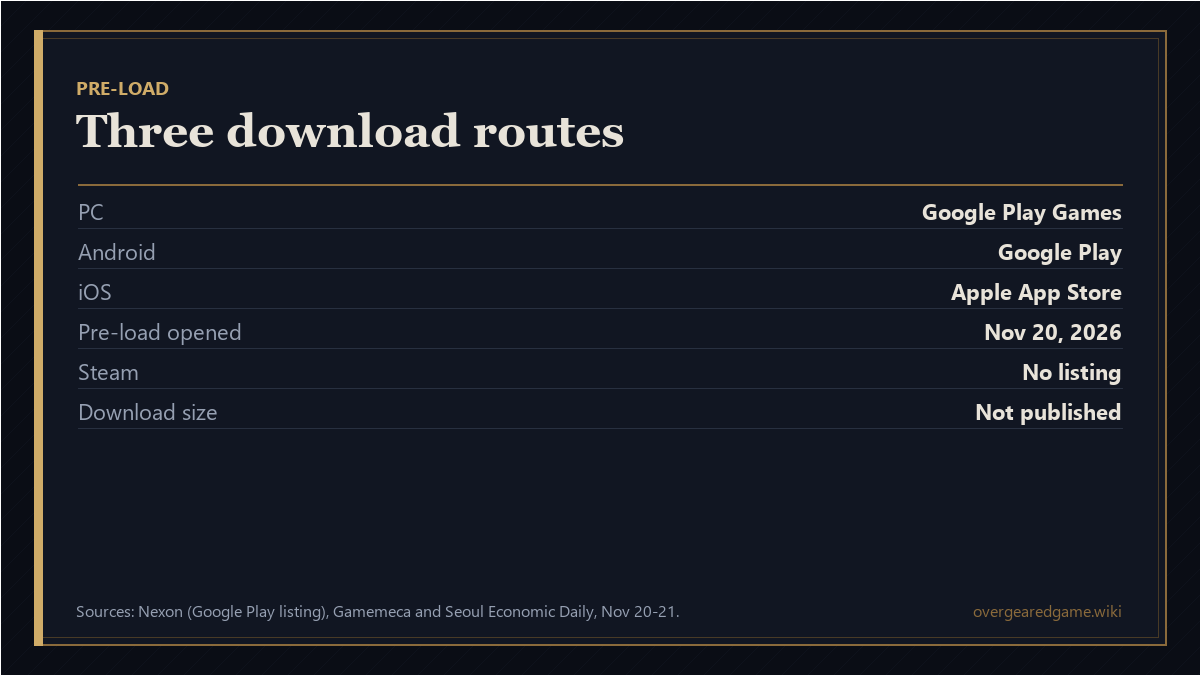
The three distribution routes as Nexon and the Korean trade press describe them. Steam is not one of them.
Controller, keyboard and mouse
Official gameplay frames show hotkey prompts (F1, Tab) in the interface, which is the clearest available evidence that the PC build expects a keyboard. Whether a controller is supported has not been announced. Practically:
- Set keybinds before your first dungeon, not during it. The settings page lists the six changes worth making first.
- Expect the mobile UI to scale down on a monitor. If text looks small at 1440p, raise the UI scale rather than lowering resolution; blurry text is worse than large text.
- Test the camera before you test combat. Camera shake and effect density are the two settings that make group fights readable.
When the install fails
| Failure | Usual cause | Action |
|---|---|---|
| "Not available in your country" | Account region outside the four markets | No workaround; see the region page |
| Download restarts from zero | Launcher cache or a dropped session | Clear the Play Games cache, sign in again |
| Install completes, launch dies | Driver or overlay conflict | Disable overlays, update driver, relaunch |
| Game runs at low frame rate | Integrated GPU or a laptop power plan | Plug in, set the plan to performance, lower effect density |
| Play Games itself will not update | Stale installer | Reinstall the launcher, not the game |
Two of those rows are worth repeating because they cost people launch night: an account region mismatch cannot be fixed from your side, and a driver that has never run an Unreal Engine 5 title is the most common cause of a crash at the logo screen.
How requirements will arrive
When Nexon publishes them, they will almost certainly be framed as a Play Games compatibility list rather than a classic spec sheet. Until then, the honest self-check is behavioural: if the client launches, reaches the title screen and holds a stable frame rate in the starting zone, your machine runs it. Test that in the next 48 hours, while a failed install still has time to be fixed.
Related: the launch day checklist covers the hours around midnight, and the platforms page covers what each store sells.